
Mobile Printing
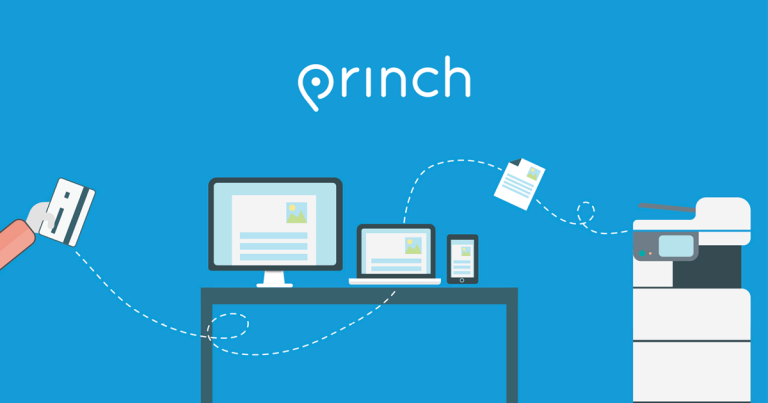
Mobile Printing through Princh
The Minocqua Public Library offers mobile printing from your personal devices. Choose the option that matches what you’re using.
Library Printer ID: 104689
Print from a Laptop
- Open a browser and go to print.princh.com.
- Choose your document and select the library printer (ID 104689).
- Choose your printer settings.
- Pay from your laptop using one of our payment methods.
Print from a Phone or Tablet
- Install the Princh app (Android or iOS).
- Open your document and use Share → select the Princh app.
- Select the library printer (ID 104689) and your printing settings.
- Pay from your device using one of our payment methods.
Tip: Look for the Share icon on your device (it may look like an arrow or connected dots).
Copy / Scan from a Tablet
- Change the language if needed.
- Select Copy and follow the on-screen instructions, or
- Select Scan to email and follow the on-screen instructions.
- Select Help if you need assistance at any step.
Need Help?
Ask staff at the desk if you’d like help printing, copying, or scanning.